Fix Broken Meta Tags for Blogger in 5 Minutes (2026 Guide)
You added meta titles and descriptions, but Google ignores them. Blogger is hiding your meta tags. Here’s exactly how to fix them — no coding skills required.
You write great content. You add a perfect meta description. You optimize your title. Then you check Google… and nothing. Your meta tags are not showing.
Frustrating, right? You are not alone. Thousands of Blogger users face the same problem. But here is the truth most guides will not tell you: Blogger does not automatically support meta tags. Your template might be hiding them, or the platform is overriding them.
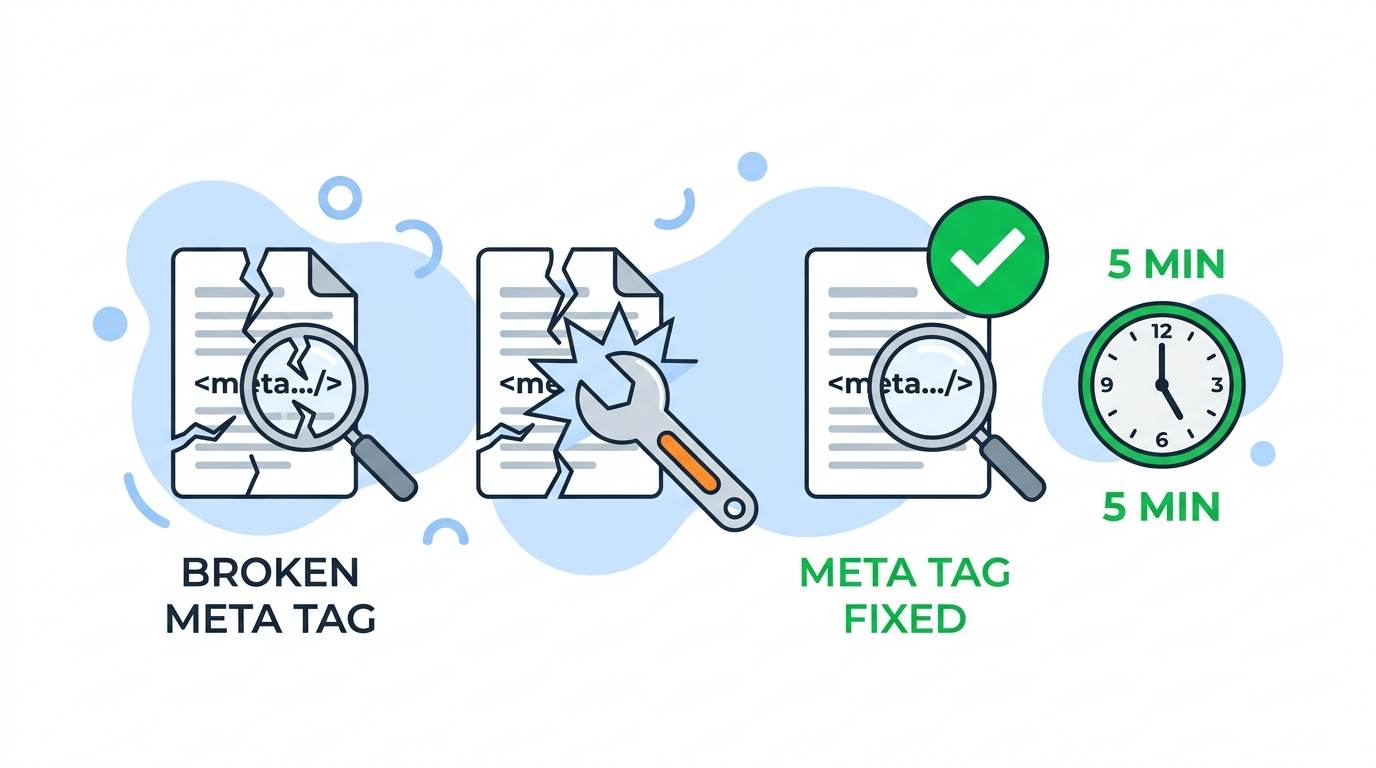
In this guide, I will show you how to fix broken meta tags for Blogger in under 5 minutes. No coding experience needed. Just follow the steps, copy the code, and take back control of your SEO.
📌 Real story – Sara lost 3 months of SEO because of broken meta tags
Sara had a Blogger blog about vegan recipes. She spent hours writing perfect meta descriptions for every post. But after 3 months, Google was still showing random snippets from her sidebar. Her click-through rate was terrible. She almost quit.
Then she discovered that her Blogger template was missing the meta description tag. One line of code fixed everything. Within 2 weeks, her click-through rate doubled. She didn’t need to rewrite anything — she just needed to fix the meta tags.
⚠️ The #1 lie about meta tags for Blogger:
“Blogger automatically adds meta tags to your posts.” False. Many free templates do not include the necessary code. You must add it manually. Otherwise, Google will ignore your meta descriptions.
Why Are Your Meta Tags for Blogger Broken? (The Ugly Truth)
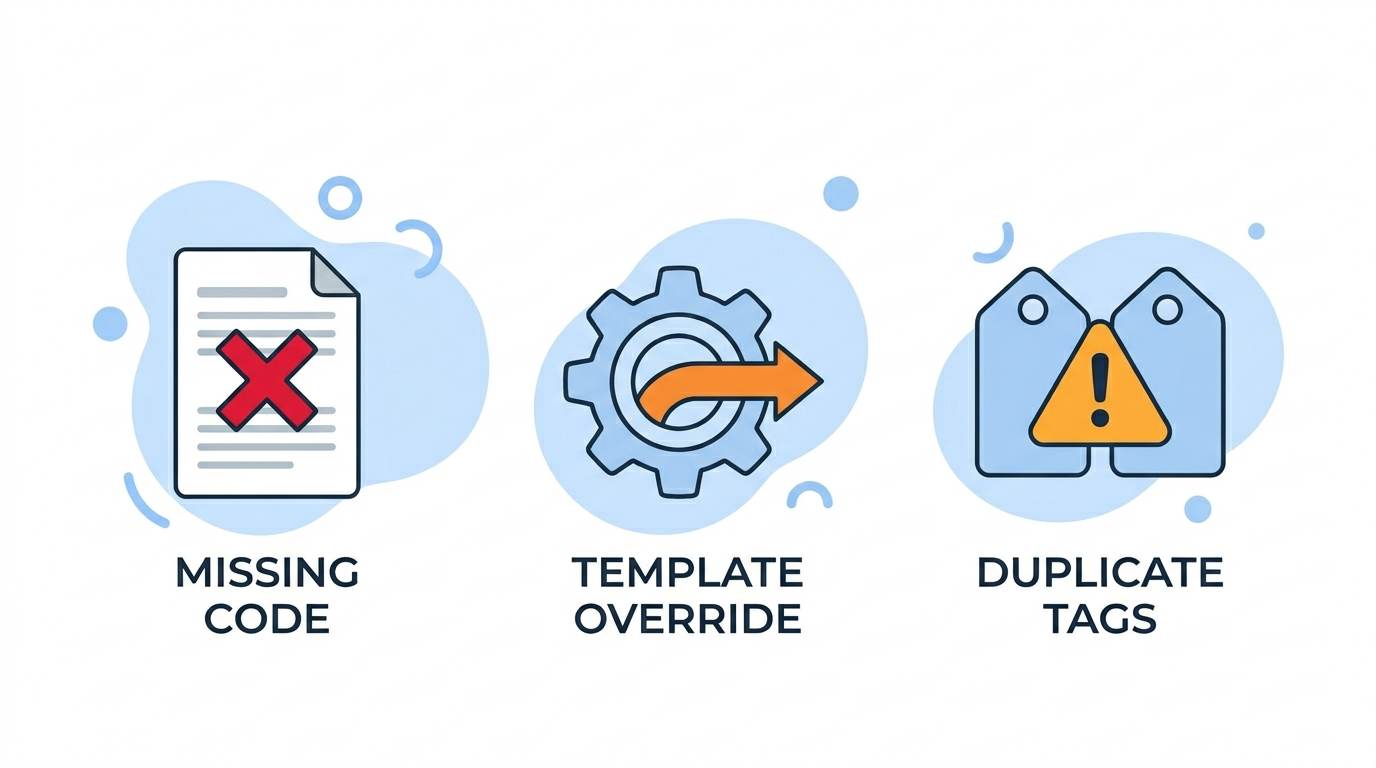
Before fixing, you need to understand the problem. Here are the three most common reasons your meta tags for Blogger are not working:
- 1. Your template is missing the meta description tag. Many free Blogger templates were built years ago. They simply do not include the line of code that outputs your custom meta description.
- 2. Blogger’s default tags are overriding yours. Blogger sometimes auto‑generates meta tags from your post content. If you do not tell it to use your custom tags, it will ignore them.
- 3. You are editing the wrong section. Adding meta tags inside a blog post editor does not work. They must be added inside the
<head>section of your template.
Do not worry. I will walk you through every fix.
How to Fix Broken Meta Tags for Blogger in 5 Minutes
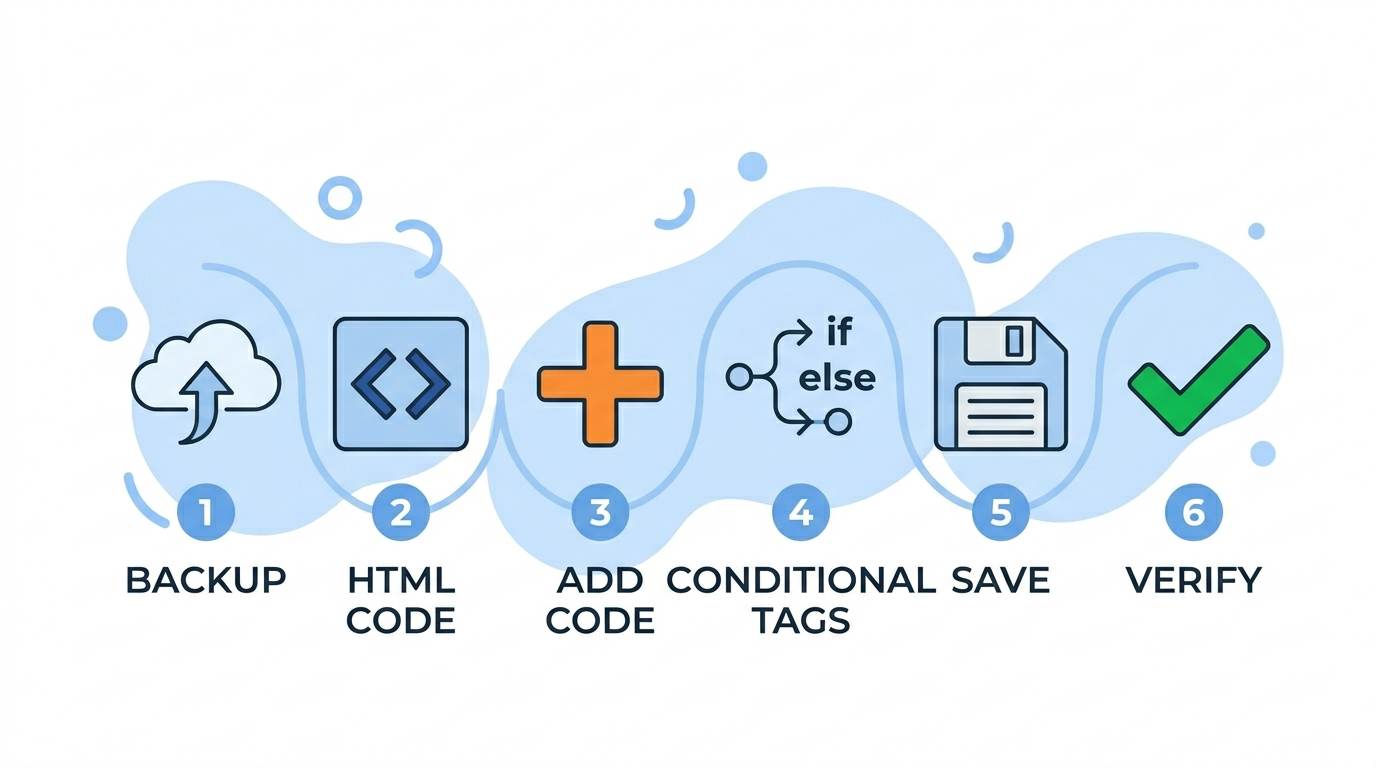
Step 1: Back Up Your Blogger Template (Safety First)
Before making any changes, save a copy of your current template. If something goes wrong, you can restore it.
How to back up: Go to Blogger → Theme → Backup / Restore → Download full template. Save the XML file on your computer.
Step 2: Access Your Template’s HTML Code
Go to Blogger → Theme → Edit HTML. This will open the raw code of your template. Do not be scared. You only need to edit one small section.
Step 3: Add the Missing Meta Tag Code
Search for <head> in the HTML editor. Just below it, paste the following code:
<b:if cond=’data:blog.metaDescription’>
<meta expr:content=’data:blog.metaDescription’ name=’description’/>
</b:if>
This code tells Blogger to use the meta description you write in each post’s settings. If you do not write one, it will leave it blank (which is fine).
Step 4: Add Conditional Title Tags (Optional But Powerful)
To improve your titles for SEO, replace your existing <title> tag with this conditional code:
<b:if cond=’data:blog.pageType == “index”‘>
<title><data:blog.title/> <data:blog.pageName/></title>
<b:else/>
<title><data:blog.pageName/> | <data:blog.title/></title>
</b:if>
This makes your homepage and post pages have different, optimized titles.
Step 5: Save Your Template
Click “Save Theme” (not “Preview”). Your meta tags are now active.
Step 6: Verify That It Works
Open one of your blog posts. View the page source (right‑click → View Page Source). Search for name="description". You should see your meta description. If you do, congratulations — you fixed it.
👉 More SEO fixes: Blogger SEO Checklist for 2026
Advanced Meta Tags for Blogger (Most Bloggers Ignore These)
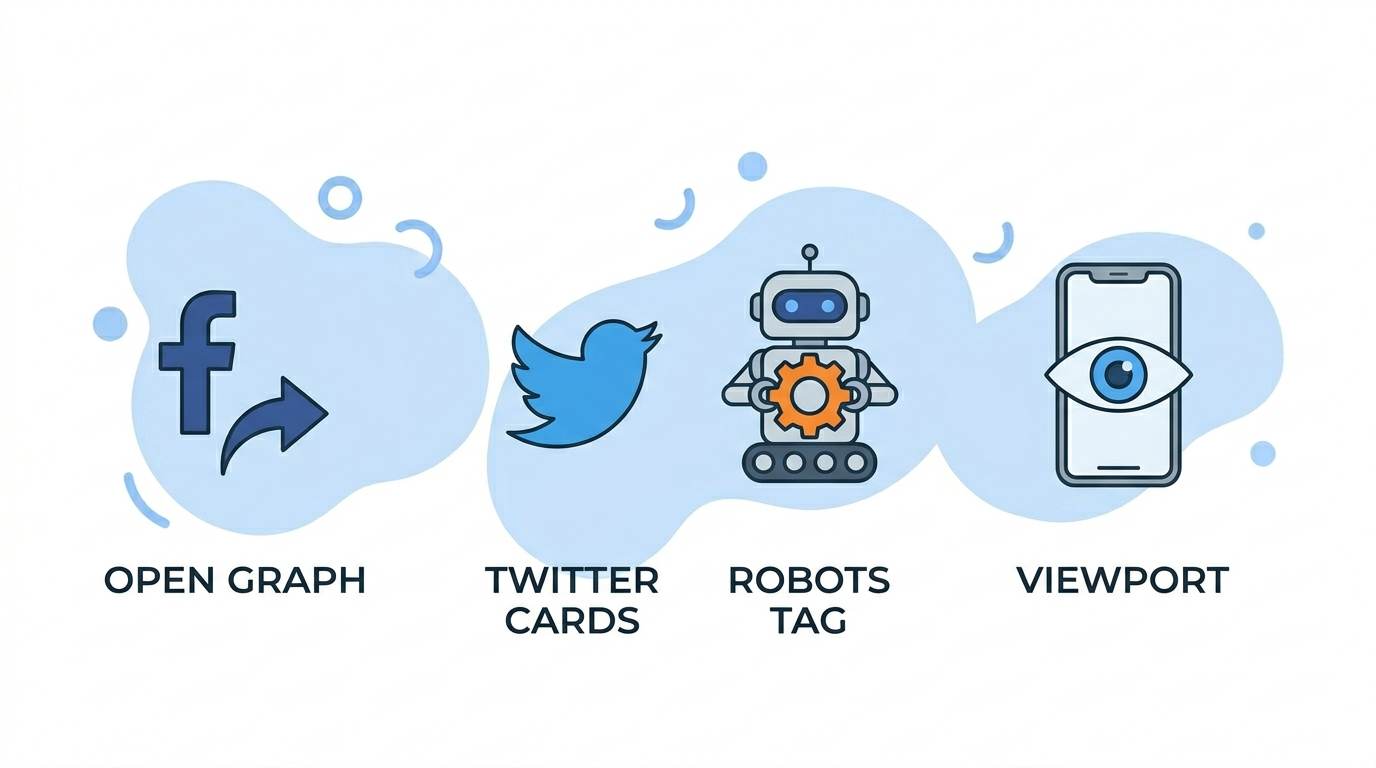
Once you fix the basics, add these advanced tags to dominate search results and social media previews.
1. Open Graph Tags (For Facebook, LinkedIn, WhatsApp)
These control how your post looks when shared on social media. Add them inside <head>:
<meta property=’og:title’ content='<data:blog.pageName/>’/>
<meta property=’og:description’ content='<data:blog.metaDescription/>’/>
<meta property=’og:image’ content=’https://yourblog.com/default-image.jpg’/>
<meta property=’og:url’ content='<data:blog.canonicalUrl/>’/>
<meta property=’og:type’ content=’article’/>
2. Twitter Card Tags
For better sharing on X (Twitter):
<meta name=’twitter:card’ content=’summary_large_image’/>
<meta name=’twitter:title’ content='<data:blog.pageName/>’/>
<meta name=’twitter:description’ content='<data:blog.metaDescription/>’/>
3. Robots Meta Tag (Control Google Indexing)
Add this to tell Google which pages to index:
<meta name=’robots’ content=’index,follow’/>
4. Viewport Tag (Mobile SEO)
Essential for mobile‑friendly ranking:
<meta name=’viewport’ content=’width=device-width, initial-scale=1’/>
How to Write Meta Tags That Get Clicks (Psychology Hacks)
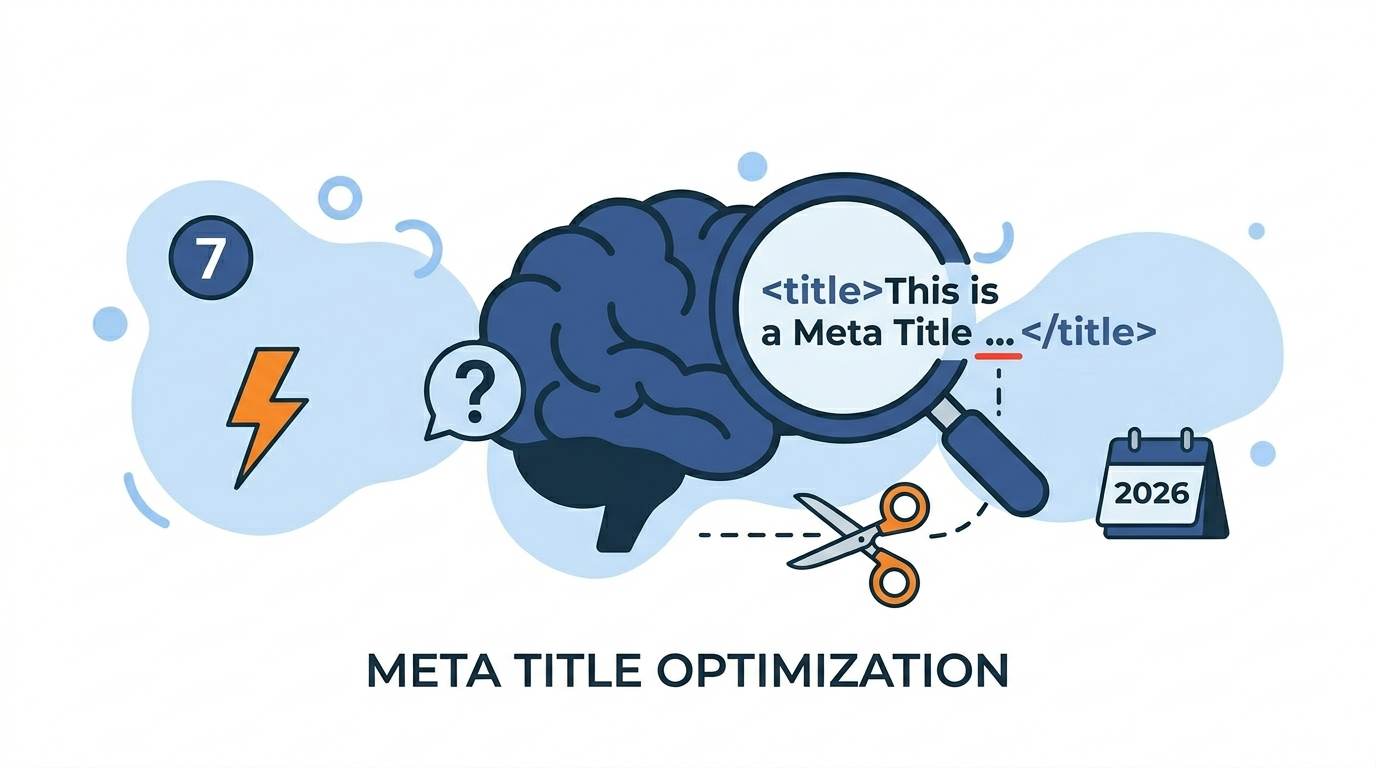
Fixing the code is only half the battle. Your meta tags also need to make people click. Use these psychological triggers:
✅ Use numbers: “7 Ways to Fix…” instead of “How to Fix…”
✅ Add power words: “Ultimate”, “Proven”, “Secret”, “Easy”, “Free”
✅ Create curiosity: “This is why your meta tags are broken…”
✅ Include the year: “2026” signals fresh content
✅ Keep meta descriptions under 160 characters – Longer gets cut off on mobile
Example of a click‑optimized meta tag:
“Broken meta tags for Blogger? Fix them in 5 minutes. No coding. Step‑by‑step guide for 2026.”
Common Mistakes That Break Your Meta Tags Again
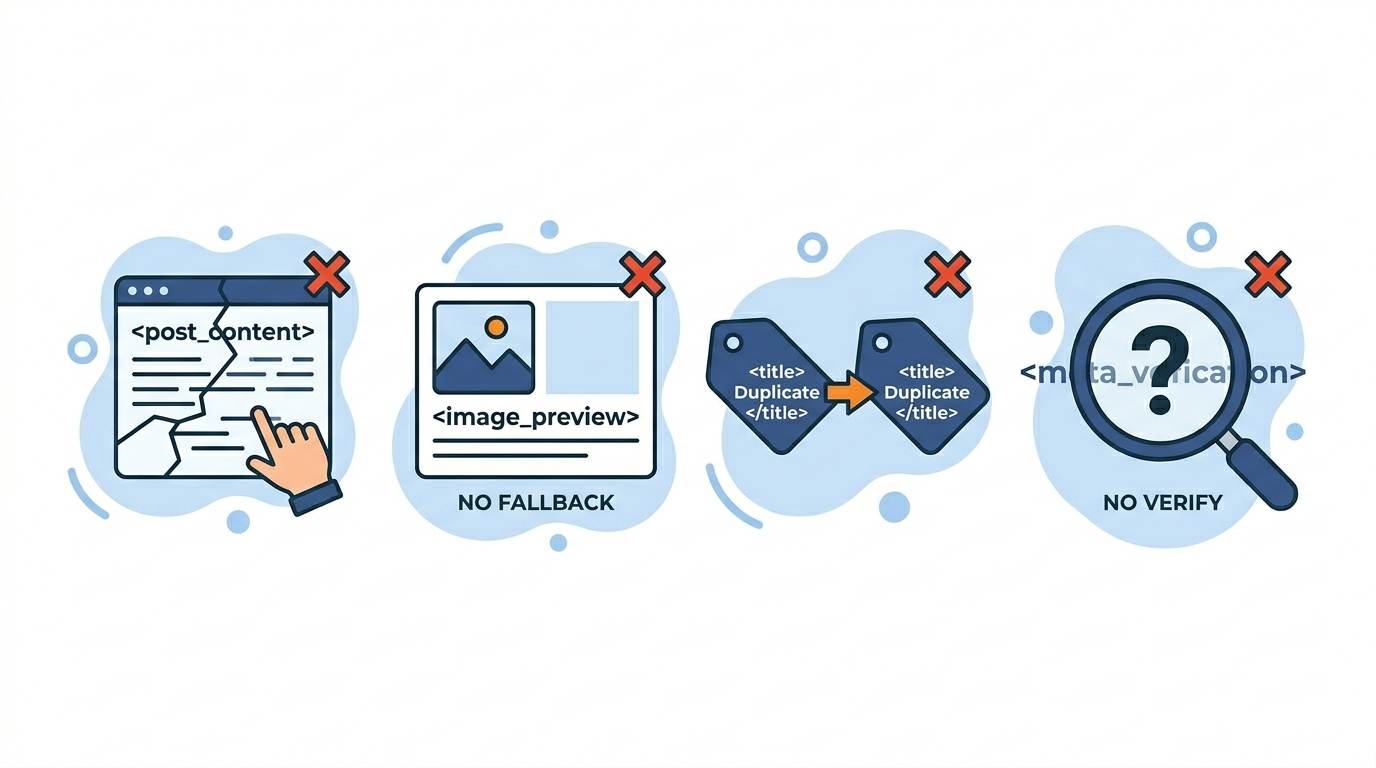
- ❌ Editing the post HTML instead of the template – Meta tags must be in the
<head>of your theme, not inside a post. - ❌ Forgetting to add fallback images for Open Graph – If no image is set, social media will show a blank preview.
- ❌ Using duplicate titles – Your homepage and posts should have different titles.
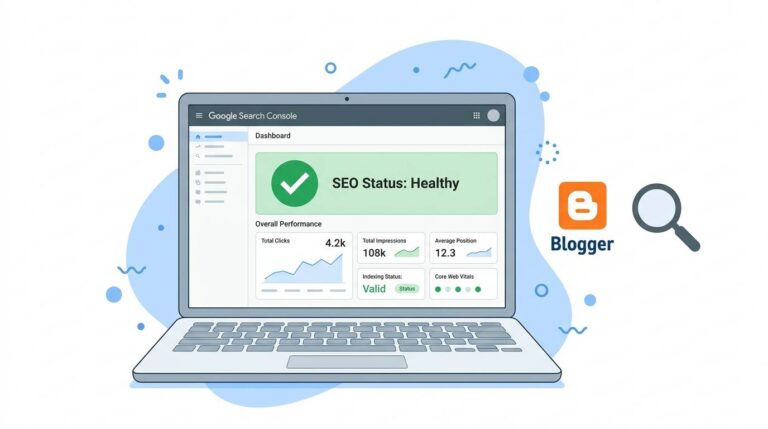
- ❌ Not verifying after changes – Always use Google Search Console’s URL Inspection tool to test.
Tools to Test Your Meta Tags (Free)
- Google Search Console – See what Google actually indexes.
- Facebook Sharing Debugger – Preview Open Graph tags.
- Twitter Card Validator – Check Twitter previews.
- SEO Minion (Chrome extension) – Analyze live meta data.
📌 Your 5‑Minute Fix Checklist
☐ Back up your Blogger template
☐ Go to Theme → Edit HTML
☐ Add the meta description code below
<head>☐ Add conditional title code (optional)
☐ Save the template
☐ Test with a blog post (view page source)
☐ Submit your sitemap to Google Search Console
FAQ – Meta Tags for Blogger
- Why is Google ignoring my meta description?
Google sometimes uses a snippet from your content if it thinks it is more relevant. Add<meta name='robots' content='nosnippet'/>to force it, but usually fixing the code solves the issue. - Do I need to add meta tags to every post?
No. After adding the code once in your template, you can write a unique meta description for each post in the post settings. - Will fixing meta tags improve my rankings?
Indirectly, yes. Better click‑through rates (CTR) send positive signals to Google, which can improve rankings over time. - What if I break my template?
Restore your backup (you saved it, right?). If not, reinstall the original theme.
Final Words: Take Control of Your Blogger SEO Today
You now know how to fix broken meta tags for Blogger in 5 minutes. No more hoping Google will guess your description. No more lost clicks.
You have the code. You have the strategy. You have the tools.
The only thing left is action. Open your Blogger dashboard. Back up your template. Add the code. Test it. Then watch your click‑through rates improve.
Your blog deserves to be seen. Fix your meta tags today.
You have got this. 🚀