How to Customize Blogger Template Without Breaking Your Blog – Ultimate Fix Guide 2026
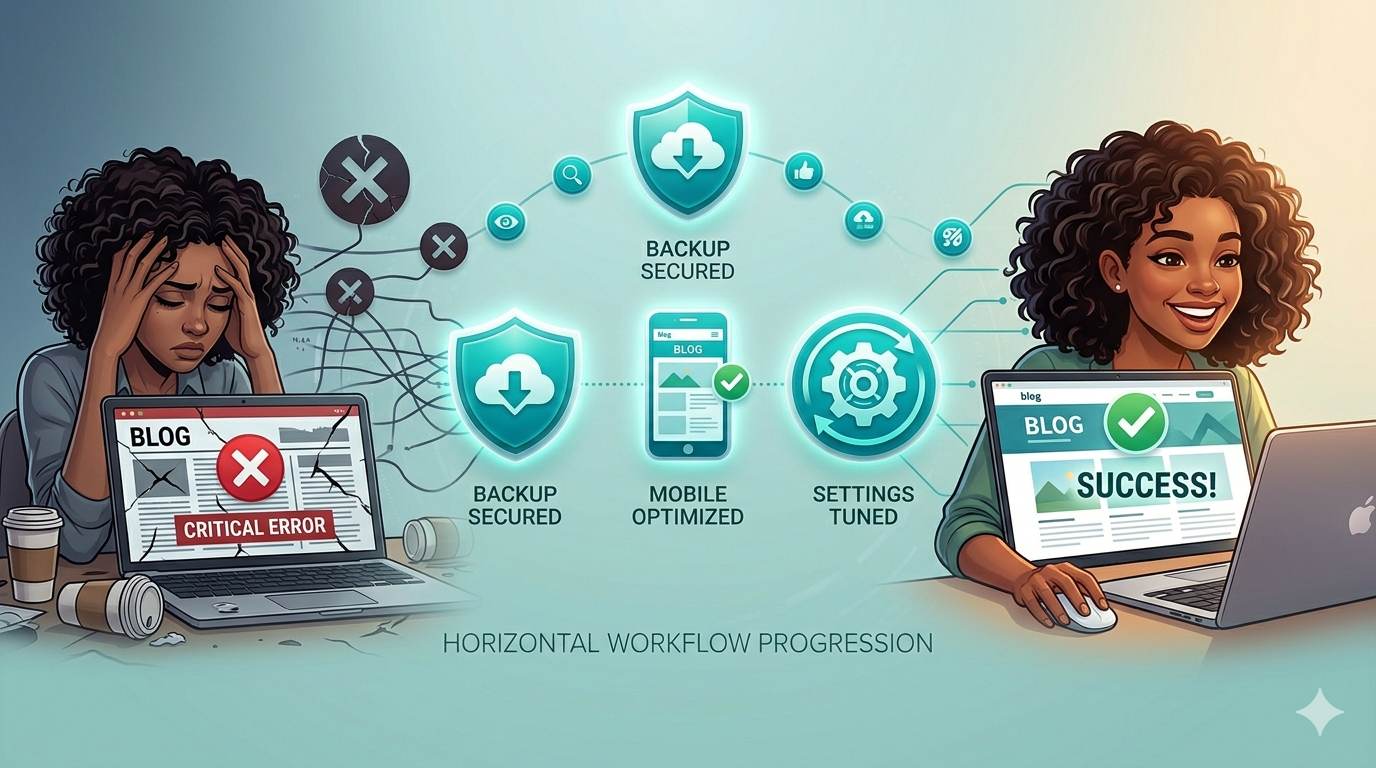
Stop fearing XML errors, mobile disasters, and lost changes. This guide solves the real problems beginners face.
You want your blog to look professional. You’ve picked a beautiful template. But you’re terrified of breaking something. What if you get the dreaded “Your template could not be parsed” error? What if your blog looks fine on desktop but explodes on mobile? What if your changes just won’t save?
These are real fears. And most blogging guides ignore them. They just say “click customize” and pretend everything works perfectly. But you and I know better. So let’s fix that. In this guide, I’ll show you how to customize your Blogger template without breaking your blog – by solving the actual problems that break blogs.
📌 True story – Ahmed
Ahmed downloaded a free template, installed it without backup, and his site broke. Buttons didn’t work. Mobile was a mess. He almost quit blogging. Then he found the fixes below – and now he customizes templates without fear. You can too.
First: The Golden Rule – Backup Before ANY Change
This takes 30 seconds and will save your sanity. Go to Blogger Dashboard → Theme → click the three dots → Backup. Save the .xml file to your computer. If anything goes wrong, you restore it. That’s it.
The 5 Real Problems That Break Blogger Templates (And How to Fix Them)
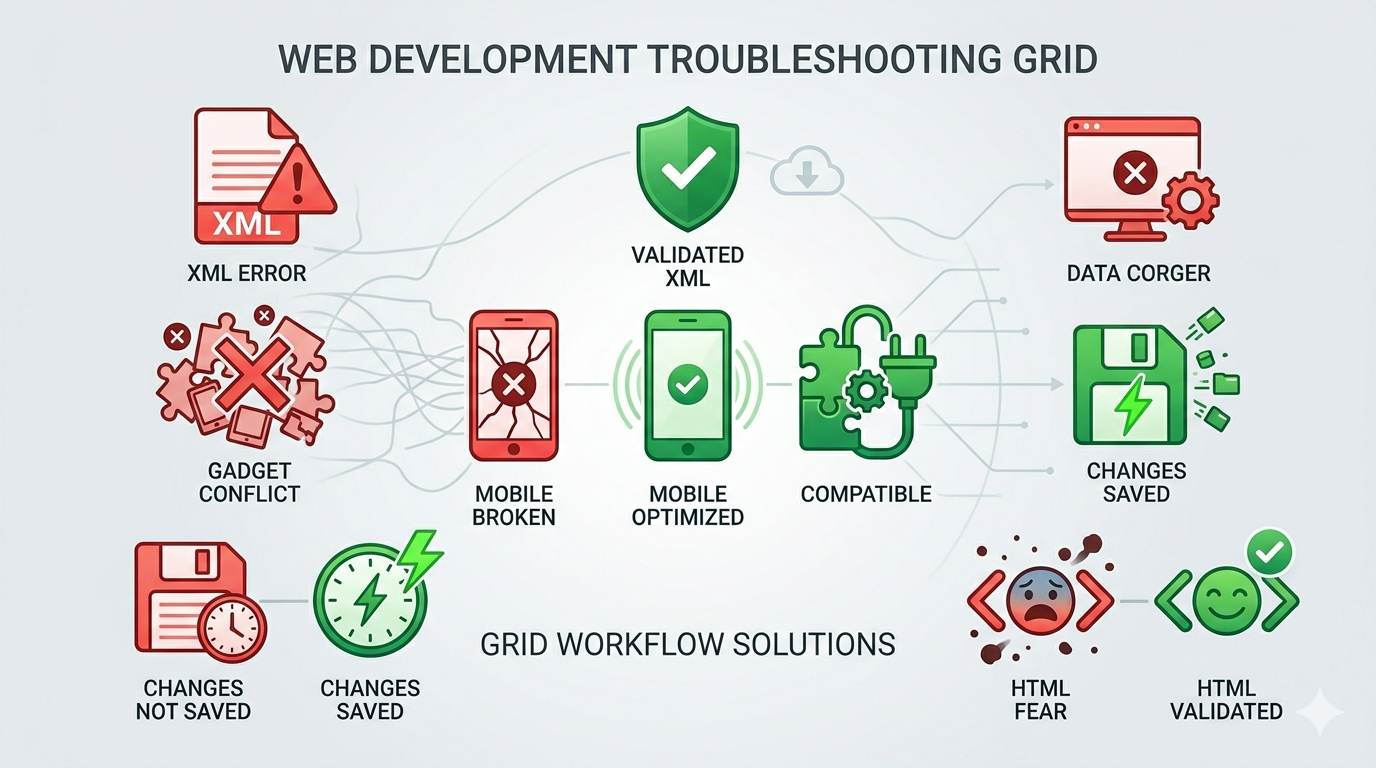
❌ Problem 1: “Your template could not be parsed as it is not well-formed”
You try to upload a template and Blogger rejects it with this scary XML error.
✅ Fix: This happens because Blogger uses strict XML rules. One missing closing tag breaks everything.
- Fix 1 (easiest): Redownload the template file from the source – it might be corrupted.
- Fix 2 (advanced): Open the .xml file in Notepad. Search for unclosed tags like
<img>or<br>– in XML, they must be<img />or<br />. - Fix 3 (safest): Only download templates from trusted sources like Gooyaabi, BTemplates, or Templateism. Avoid random sites.
❌ Problem 2: Template looks fine on desktop, but completely broken on mobile
Your beautiful new design works on your laptop but turns into a mess on your phone.
✅ Fix: Blogger has a separate mobile theme setting that overrides your new template.
- Go to Blogger Dashboard → Theme
- Click the gear icon or dropdown arrow next to the Customize button.
- Select “No. Show desktop theme on mobile devices”.
- Save. Your responsive template will now work correctly on phones.
❌ Problem 3: Template breaks immediately after installation (gadget conflicts)
You install a template and your sidebar disappears, or layout goes crazy.
✅ Fix: The template conflicts with existing widgets (gadgets). Install the template without gadgets first.
- Go to Blogger Dashboard → Theme → Edit HTML
- Delete everything in the HTML editor.
- Paste the new template’s raw XML code.
- Click Save. The template will install without any widgets.
- Then add your gadgets one by one from the Layout menu.
❌ Problem 4: Changes in Theme Designer don’t save (or revert after saving)
You change fonts, colors, hit save – but nothing changes, or it goes back to default.
✅ Fix: Usually a browser cache issue or a hidden code error.
- Fix 1: Clear your browser cache (Ctrl+Shift+Del) and reload.
- Fix 2: Try a different browser (Chrome vs Firefox).
- Fix 3: Check for HTML errors: Go to Theme → Edit HTML → click Preview. Blogger will show you exactly where the error is.
- Fix 4: Disable any AdBlock or browser extensions temporarily.
❌ Problem 5: “I rushed into editing HTML without understanding it”
You tried to edit code, broke the layout, and now you’re lost.
✅ Fix: First, restore your backup. Then start with the Theme Designer – no code needed.
- Use Theme Designer for fonts, colors, layout width, and backgrounds. It’s safe and visual.
- Only touch HTML when you’re ready. And always backup before any code edit.
- Practice on a test blog first (create a new blog with a dummy name).
The Safe Way to Customize Your Blogger Template (No Fear, No Breaks)
Follow this order every time:
- Step 1 – Backup (30 seconds, non-negotiable).
- Step 2 – Create a test blog (2 minutes). Use it to try new templates before touching your live site.
- Step 3 – Install the template on the test blog and check desktop + mobile views.
- Step 4 – If it works, install on your real blog using the “restore” method.
- Step 5 – Customize using Theme Designer (fonts, colors, layout).
- Step 6 – Only then, consider HTML edits – and always backup first.
Where to Find Safe, High-Quality Free Templates
- Gooyaabi Templates – clean, modern, tested
- BTemplates – hundreds of free, user-rated designs
- Templateism – professional and responsive
- Blogger’s official library (built-in) – safest but limited
⚠️ Avoid random sites that ask you to disable adblock or download suspicious files.
The Brutal Truth (Read This Twice)
Most beginner bloggers never customize their templates because they’re afraid of breaking something. That fear keeps their blogs looking generic and unprofessional. And that fear is unnecessary.
Here’s the reality: You will make mistakes. You will install a template that looks weird on mobile. You will accidentally remove a widget. That’s fine. That’s how you learn. The only real mistake is not backing up before you start. With a backup, you can always go back. Without a backup, you’re one click away from disaster.
So backup now. Then stop being scared. Your blog deserves to look as good as your content.
Your 7‑Day Safe Customization Plan
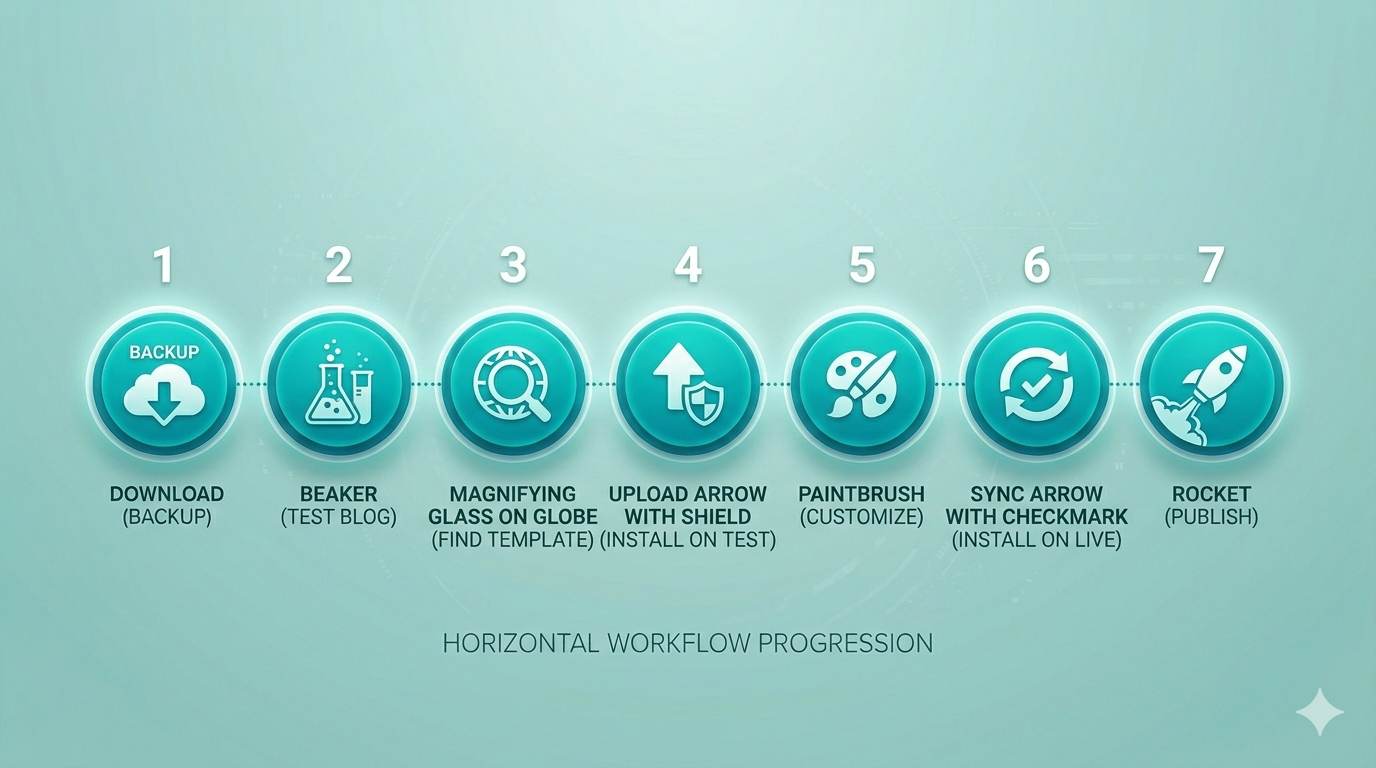
- Day 1: Backup your current template (do it now).
- Day 2: Create a test blog – name it “My Test Blog”.
- Day 3: Find a free template from a trusted source – download the .xml file.
- Day 4: Install the template on your test blog. Test desktop, mobile, and gadgets.
- Day 5: Customize fonts and colors using Theme Designer on the test blog.
- Day 6: If everything works, install the same template on your real blog (using Restore).
- Day 7: Add your logo, clean up sidebar, and publish with confidence.
After 7 days, you’ll never be scared of customizing your template again.
Helpful Resources
- 👉 How to Install a Blogger Template (Even If You’re New)
- 👉 Best Free Blogger Templates – How to Find Clean, Professional Designs
- 👉 How to Start a Blog on Blogger (Step-by-Step)
One Last Thing
How to customize Blogger template without breaking your blog isn’t complicated. It’s about following safe steps, knowing the common problems, and having a backup plan. You now have all of that.
Stop being scared. Open your Blogger dashboard. Backup your template. Then start making your blog beautiful. Your readers will notice. And you’ll wonder why you waited so long.
You’ve got this. 👻