Google Search Console for Blogger: Free SEO Tool (2026 Guide)
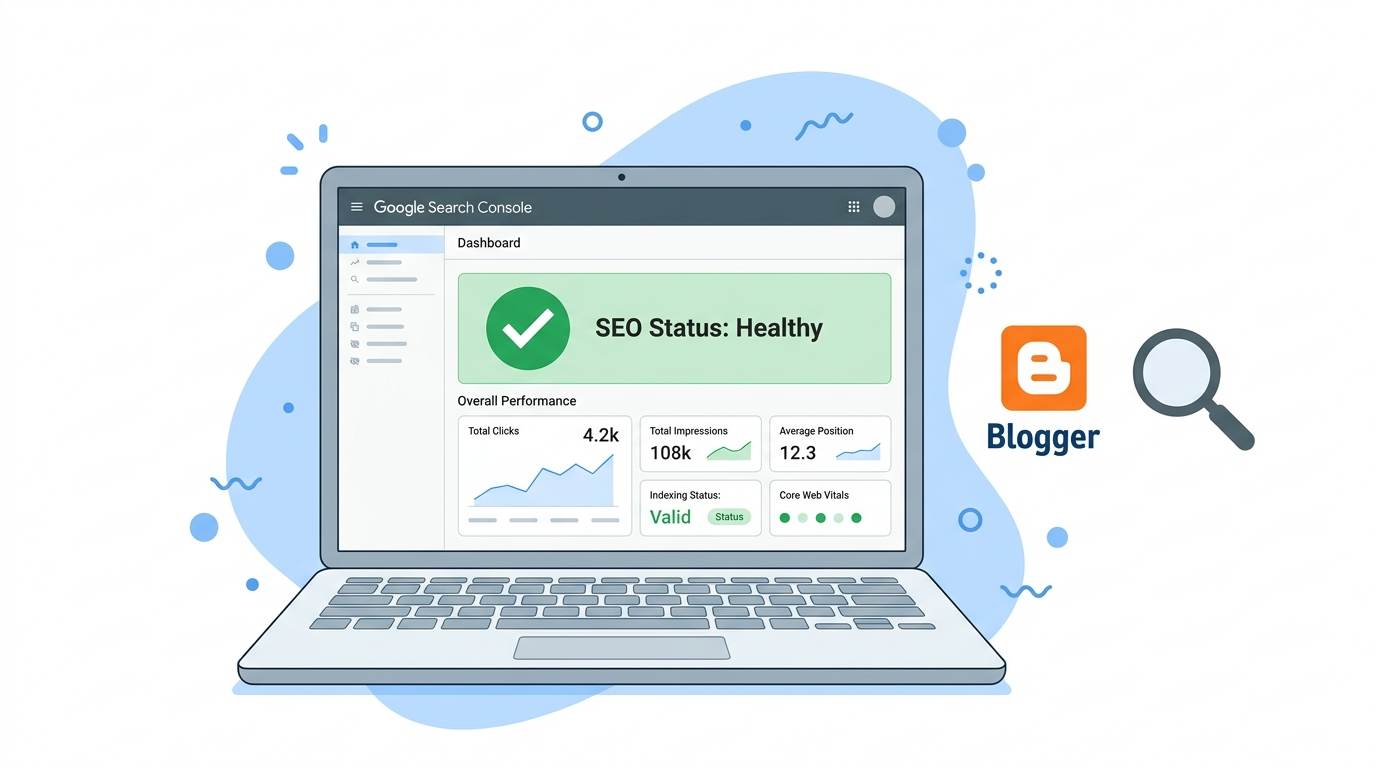
📘 TL;DR – What you’ll learn: Google Search Console is a free tool that shows you exactly how Google sees your Blogger blog. This guide walks you through connecting your blog, submitting your sitemap, and using the Performance and Coverage tabs to find indexing issues, top keywords, and click‑through rates. Stop guessing – start growing with real data.
🔥 The Blindness Most Bloggers Suffer
Let me ask you something, brother. You write blog posts. You share them on social media. Maybe you even added some keywords. But when you search Google for your own content… nothing shows up. Or worse — random pages appear instead of the ones you want.
You feel blind. You don’t know if Google even knows your blog exists.
I have good news. There is a free tool built by Google exactly for this problem. It’s called Google Search Console for Blogger. And if you have a Blogger site, you can set it up in under five minutes.
In this guide, I will show you exactly how to use Google Search Console for Blogger — no tech skills needed. Just follow along, step by step.
Before you dive into Search Console, make sure your meta tags are working so your pages look right in search results. My Fix Broken Meta Tags for Blogger guide shows you how to fix them in 5 minutes. And to track overall traffic and engagement once you start ranking, set up Set Up Google Analytics on Blogger – the two tools work perfectly together.
📌 Real story – Yara had no idea why her blog had zero traffic
Yara started a Blogger blog about study tips for university students. She wrote 20 detailed posts. She shared them everywhere. After three months, she had less than 50 daily visitors. She felt like giving up. Then a friend told her about Google Search Console. She connected her blog in 10 minutes. Inside, she discovered that only 4 of her 20 posts were indexed. Google didn’t even know the others existed. She submitted her sitemap, fixed a few errors, and within two weeks, all her posts started showing up. Her traffic doubled.
She wasn’t writing bad content. She just wasn’t telling Google about it.
⚠️ The #1 myth that hurts Blogger owners: “Google will find my blog automatically.” False. Google needs help. Search Console is how you give that help. Without it, your best posts might never be indexed.
✅ What Is Google Search Console? (In Plain English)
Google Search Console for Blogger is a free dashboard that shows you exactly how Google sees your blog. It answers questions like:
- Which of my posts are indexed (saved in Google’s database)?
- What keywords are people typing to find me?
- Why are some pages missing from search results?
- How many clicks am I getting from Google?
Think of it as a control panel for your blog’s presence on Google. No guessing. No hoping. Just real data.
📊 Why You Cannot Ignore This Tool in 2026
- 📊 It shows you what works – Which posts bring traffic? Which keywords actually send visitors? You will finally know.
- 🛠️ It finds problems before they hurt you – Indexing errors, mobile issues, broken pages — Search Console warns you.
- 📈 It helps you write better content – See what people search for, then create more of what they want. Use Ubersuggest (free tier) to find even more keywords.
- 💰 It is 100% free – No hidden costs. No premium version. Just pure Google tool.
Most Blogger beginners ignore Search Console because it looks technical. But trust me — if you can log into your blog, you can use this tool.
🔧 How to Connect Blogger to Google Search Console (Step by Step)
Step 1: Sign in to Google Search Console
Go to search.google.com/search-console. Sign in with the same Google account you use for Blogger.
Step 2: Add Your Blog’s URL
Click “Add Property”. Choose the “URL prefix” option. Enter your full Blogger address — for example, https://yourblogname.blogspot.com.
Step 3: Verify Ownership
Because Blogger is a Google product, verification is usually automatic. If not, choose the HTML tag method. Copy the meta tag, go to Blogger → Theme → Edit HTML, paste it just after <head>, save, then go back to Search Console and click “Verify”. (Need help editing your template? Check How to Customize Blogger Template for safe steps.)
Step 4: Submit Your Sitemap
A sitemap tells Google about all your posts. On the left menu, click “Sitemaps”. In the field, type sitemap.xml and click submit. That is it. Google will now crawl your entire blog.
For a complete SEO overhaul, combine Search Console with my Blogger SEO Checklist – it covers everything else you need to rank higher.
📈 What You Will See Inside Search Console (And What It Means)
1. Performance Tab (Your New Best Friend)
This is where the magic happens. It shows:
- Total clicks – How many times people clicked from Google to your blog.
- Total impressions – How many times your blog appeared in search results.
- Average CTR (click‑through rate) – The percentage of people who clicked after seeing your result. Low CTR means your title or description is not attractive.
- Average position – Your ranking on Google (position 1 is the best).
Scroll down, and you will see the exact keywords people used to find you. This is gold. Write more posts around those keywords.
2. Coverage Tab (Find Hidden Problems)
This tab shows which of your pages are indexed. If a post says “Excluded” or “Error”, Google cannot show it. Common issues:
- “Page with redirect” – Fix your links.
- “Crawled – currently not indexed” – Request indexing again.
- “Excluded by noindex tag” – Remove the noindex tag from important posts.
3. URL Inspection Tool (Check Any Post Instantly)
Paste any post URL into the search bar at the top. Search Console will tell you:
- Is the post indexed?
- If not, what is the problem?
- You can click “Request Indexing” to speed things up.
💡 Pro Tips to Make Search Console Work for You
- ✅ Check the Performance tab every week. Look for keywords with high impressions but low clicks. Improve your title and meta description for those posts.
- ✅ Fix coverage errors immediately. A broken page today could mean lost traffic tomorrow.
- ✅ Request indexing after publishing a new post. Do not wait for Google to find it. Use the URL Inspection tool and click “Request Indexing”.
- ✅ Compare time periods. See if your blog is growing. Last month vs this month — more clicks? More impressions?
❌ Common Mistakes That Keep Your Blog Invisible
- ❌ Not submitting a sitemap. Google will find your posts eventually. But a sitemap makes it faster and more complete.
- ❌ Ignoring the Coverage tab. If you never check, you will never know which pages are missing.
- ❌ Forgetting to check what keywords bring traffic. You might be ranking for something you did not expect — and that is a content opportunity.
- ❌ Only adding your .blogspot.com domain. If you buy a custom domain, add it as a separate property in Search Console.
🙋 Real Questions from Beginners (Answered)
Do I need a custom domain to use Search Console with Blogger?
No. It works perfectly with your free .blogspot.com address.
How long until Google shows my data?
It can take a few days to a few weeks. Be patient. Keep writing and sharing.
Why does Google show a different title than mine?
Google sometimes rewrites titles. Use the Performance tab to see what Google actually shows, then adjust your title tag. (Fix this with the meta tags guide linked above.)
Is Search Console only for WordPress?
Absolutely not. Google built it for all websites — including Blogger.
💡 The Brutal Truth (Read This Twice)
Most Blogger users never set up Search Console because they think it’s too technical. They waste months writing content that Google never indexes. They wonder why nobody visits.
Yara wasted 3 months. You don’t have to. The setup takes 5 minutes. The data you get will show you exactly what to write next, what to fix, and how to grow.
Google Search Console for Blogger is a free tool that pays for itself in traffic and clarity. Stop ignoring it. Set it up today.
⚠️ Remember: After submitting your sitemap, it can take a few days for Google to crawl everything. Use the URL Inspection tool to speed up indexing for your most important posts.
📋 Your 15‑Minute Action Plan (Do This Today)
- ☐ Go to Google Search Console and sign in.
- ☐ Add your Blogger URL (e.g., yourblog.blogspot.com).
- ☐ Verify ownership (likely automatic).
- ☐ Submit your sitemap: sitemap.xml.
- ☐ Open the Performance tab. Look at your top keywords.
- ☐ Use URL Inspection to check your latest post. Request indexing if needed.
- ☐ Schedule 10 minutes every week to review your data.
🎤 Final Words: Stop Wasting a Free Tool That Works
Google Search Console for Blogger is not complicated. It is not only for tech experts. It is a free gift from Google to help you grow. And you are ignoring it.
Yara ignored it for months. She wasted time guessing. Once she started using it, her traffic doubled. She finally understood her audience.
Do not be like Yara — the one who waited too long.
Log into Search Console today. Connect your blog. Look at your data. Then write what works.
Your blog deserves to be seen. Give Google the map to find it.
You have got this, brother. 📊
👉 Ready to stop guessing and start growing? Go to Google Search Console (free). Connect your Blogger blog in 5 minutes. No tech skills needed. Start understanding your traffic today.