Categories in Blogger: The Secret to Better SEO 2026
📘 TL;DR – What you’ll learn: Most bloggers ignore categories (labels) on Blogger – and their SEO pays the price. This guide shows you how to create categories, display them with the Labels gadget, remove the noindex tag from category pages, and avoid common mistakes. Organizing your posts into 5‑10 main categories will lower bounce rate, increase pages per session, and help Google understand your site structure.
🔥 The Disorganized Blog Problem
You publish post after post. You share them on social media. Maybe you even check your traffic every morning. But something feels wrong, brother.
People come, they read one article, and they vanish. Your bounce rate is climbing. Google seems to ignore half your content. You have no idea why.
I have been there. I wrote fifty posts before realizing my blog was nothing but a pile of disconnected articles. No structure. No navigation. No SEO boost.
Then I discovered the hidden power of categories in Blogger. Everything changed. My bounce rate dropped. My pages per session doubled. Google finally started ranking my content.
In this guide, I will show you exactly how to use categories to transform your Blogger blog’s SEO in 2026. No code. No plugins. Just a simple system that works.
Before you organize your categories, make sure your meta tags are working so each page ranks properly. My Fix Broken Meta Tags for Blogger guide shows you how in 5 minutes. And to track how categories affect reader behavior, use Audience Engagement Metrics – lower bounce rate and higher pages per session are key signs of success.
📌 Real story – Lina had 80 posts and zero traffic
Lina wrote about healthy recipes for two years. Every post was well researched. But her blog was a mess. No categories. No structure. Readers landed on a recipe, got confused, and left. Google could not understand what her blog was about. Then she spent one afternoon adding categories: “Breakfast”, “Lunch”, “Dinner”, “Snacks”, “Meal Prep”. She added the Labels gadget to her sidebar. Within three weeks, her page views per session increased by 120%. Her bounce rate dropped from 85% to 62%. She did not write new content. She just organized what she already had.
⚠️ The #1 myth that kills your Blogger SEO: “Labels are just tags – they don’t matter for SEO.” False. Categories (labels) create archive pages, improve crawlability, and help Google understand your site structure. Ignoring them means leaving traffic on the table.
✅ What Are Categories in Blogger?
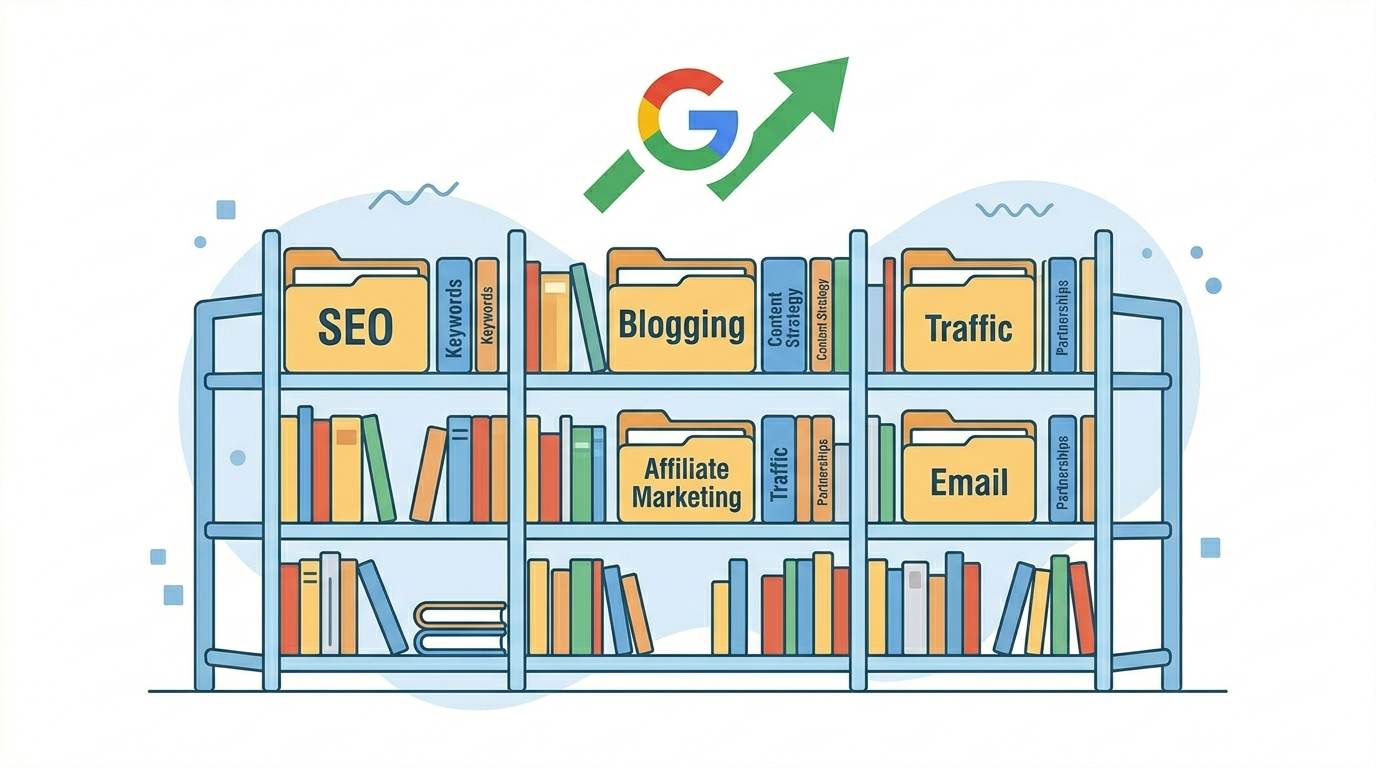
On Blogger, categories are called Labels. Think of them as digital folders. You assign one or more labels to each blog post, and Blogger automatically groups posts with the same label together.
Example: You write about three topics – SEO, email marketing, and affiliate marketing. Create three labels: “SEO”, “Email Marketing”, “Affiliate Marketing”. When a reader clicks on “SEO”, they instantly see every post you have written on that topic. No searching. No random archives.
Why this matters for SEO:
- ✅ Helps readers find related posts – lower bounce rate, higher time on site.
- ✅ Creates automatic archive pages for each category – more indexable content.
- ✅ Tells Google exactly what your blog covers – improves topical authority.
- ✅ Makes your blog look professional and trustworthy – which Google rewards.
If you are not using labels, you are not using Blogger to its full potential.
📊 Why Categories in Blogger Matter for SEO in 2026
- 🔍 Google finally understands your blog. Categories act like a table of contents. When Google sees a clear category structure, it can crawl your site more efficiently and understand which topics you cover.
- ⏳ Readers stay longer (which Google loves). A clean category menu helps visitors find related content instantly. Lower bounce rate + higher time on site = positive SEO signals.
- 📚 You build topical authority. Google rewards blogs that cover topics in depth. Categories help you cluster content. Each category becomes a hub of related information, signaling expertise.
- 🔗 Internal linking becomes natural. A logical taxonomy makes it easy to link between posts in the same category, distributing link equity and strengthening your site architecture.
🏷️ Categories vs Tags: What Is the Difference?
This confuses many beginners. Let me make it simple.
Categories are broad folders. Your blog should have 5–10 main categories that cover your core topics. A post belongs to one primary category.
Tags are specific keywords. They describe the details of a post. A single post can have many tags.
Example on a food blog:
- Category: Desserts (broad)
- Tags: chocolate, gluten-free, baking, easy (specific)
On Blogger, both are managed through the same Labels feature. But smart bloggers use some labels as categories (broad) and others as tags (specific).
The SEO rule: Use categories for navigation. Use tags for internal linking. Do not mix them up.
📝 How to Create Categories in Blogger (Step‑by‑Step)
1. Add a Category (Label) to a New Post
- Go to your Blogger dashboard → New Post
- On the right sidebar, find the “Labels” section
- Type the category name (example: “SEO Tips”)
- Press Enter to add it
🎯 You can add multiple labels to one post – but keep them relevant. Do not add ten labels just for the sake of it.
2. Add Categories to Existing Posts
If you already have posts without categories, do not worry. You can fix everything in minutes.
- Go to Posts list → click Edit on any post
- Find the “Labels” section on the right
- Add your category name → click Update
- Repeat for all posts
Do not skip this step. Those old posts are lost in your archives. Give them a home.
3. Display Categories on Your Blog (Labels Gadget)
Categories do not help if readers cannot find them.
- Go to Layout in your Blogger dashboard
- Click “Add a Gadget”
- Choose the “Labels” gadget
- Select how to show your labels (list, cloud, or dropdown)
- Choose “Show selected labels” and pick your main categories
- Save your changes
Now your readers can click any category and see all related posts instantly.
4. Create a Category Page (Optional but Powerful)
Want a clean page that shows only posts from a specific category?
- Go to Pages → New Page
- Name it after your category (example: “SEO Articles”)
- In the content area, paste a link like:
https://yourblogname.blogspot.com/search/label/SEO - Add a description or thumbnail
- Click Publish
This creates a dynamic category page powered by Blogger. New posts with that label appear automatically. No manual updates needed.
💡 Pro Tips for SEO‑Friendly Categories in 2026
- Stick to 5–10 main categories. Too many confuse readers and search engines. Too few become meaningless.
- Use category names that include keywords. Not “My Stuff” – use “Budget Travel Tips”, “Beginner SEO Guide”.
- Assign one primary category per post. This keeps your structure clean. If a post fits multiple categories, it might be too broad.
- Keep category names short. Two or three words maximum. “Summer Party Ideas” is fine; “My Great Summer Party Ideas for 2026” is not.
- Plan for the future. Before creating a new category, ask: “Will I write at least 5–10 posts for this?” If not, do not create it.
- Enable category pages for indexing. By default, Blogger adds a
noindextag to label pages. To remove it: go to Settings → Crawlers and indexing → Enable custom robots tags → Uncheck “Use default robots tags” for Archive and Search pages. (For more SEO fixes, see Blogger SEO Checklist – it covers everything from categories to meta tags.)
❌ Common Mistakes That Kill Your SEO (Avoid These)
- ❌ Creating a new label for every single post. 100 posts with 80 different labels = chaos. Consolidate into 5‑10 main categories.
- ❌ Leaving posts unlabeled. Every post deserves a home. Create an “Announcements” label if needed, but never leave posts without categories.
- ❌ Using too many labels per post. Two or three max. Using a dozen labels confuses readers and looks like keyword stuffing.
- ❌ Naming categories too specifically. “Summer 2024 Party Ideas” is a one‑time label. “Party Ideas” can be used for years.
- ❌ Forgetting to display categories on your blog. Your beautiful category structure does nothing if readers cannot find it. Add the Labels gadget.
- ❌ Not allowing category pages to be indexed. If your label pages have the noindex tag, Google cannot rank them. Fix your robots settings as shown above.
💡 The Brutal Truth (Read This Twice)
Most bloggers ignore categories because they think “labels don’t matter.” Meanwhile, Lina spent one afternoon adding categories and saw her page views per session increase by 120% and her bounce rate drop from 85% to 62%. No new content. Just organization.
Categories in Blogger are not optional. They are the difference between a blog that looks like a random pile of posts and a blog that Google trusts as an authority. If your blog is disorganized, readers leave. Google notices. And you lose traffic.
Fix it today. It takes one afternoon. Your future self will thank you.
⚠️ Remember: Categories help readers find more content. More content = more page views = lower bounce rate = better SEO. It’s a virtuous cycle. Start it today.
📋 Your 1‑Day Blogger Categories Action Plan
- ☐ List your 5–10 main categories (use keywords people search for).
- ☐ Go through every existing post – assign a category to each.
- ☐ Add the Labels gadget to your sidebar (Layout → Add a Gadget → Labels).
- ☐ Remove the noindex tag from label pages (Settings → Crawlers and indexing).
- ☐ Test your category pages – click each one and make sure they work.
- ☐ Commit to using categories for every new post from now on.
🙋 Frequently Asked Questions
How many categories should my Blogger blog have?
Aim for 5‑10 main categories. Too few makes navigation useless. Too many confuses readers and dilutes authority.
Can a post have more than one category?
Yes, but limit it to 2‑3. If a post fits in many categories, it might be too broad. Focus on one primary category.
Why are my category pages not showing in Google?
By default, Blogger adds a noindex tag to label pages. Follow the pro tip above to remove it. Also, submit your sitemap in Google Search Console.
Should I use categories or tags for SEO?
Both. Use categories for broad topics (navigation). Use tags for specific details (internal linking). Don’t confuse them.
What if I have too many old posts to recategorize?
Start with your most popular 20‑30 posts. Then do 5‑10 per week. You don’t have to do everything at once.
🎤 Final Thoughts: Your Blog Deserves Better Structure
Categories in Blogger are not just a feature. They are the backbone of your blog’s SEO and user experience.
Lina transformed her blog in one afternoon just by organizing what she already had. She did not write a single new post. She just added categories. Her traffic, bounce rate, and engagement all improved.
You can do the same.
Log into your Blogger dashboard right now. Write down your 5–10 main categories. Add the Labels gadget. Then go through your posts – one by one – and give every post a home.
Your readers will find more content. Google will understand your site better. And your blog will finally start growing the way it deserves.
You have got this, brother. 🚀
👉 Ready to organize your blog and boost your SEO today? Go to your Blogger dashboard now. Add your first category in under 2 minutes. Your future readers will thank you.