Perfect Logo in Blogger Size Guide | 100% Fixed
📘 TL;DR – What you’ll learn: Blurry, cropped, or stretched logos are a common problem on Blogger. The perfect logo size is 400px wide (height 80‑120px), saved as PNG with transparent background, under 100KB. This guide gives you the exact dimensions, step‑by‑step upload instructions, and CSS fixes for stubborn themes. No more guessing – fix your logo in 5 minutes.
🔥 The Logo Frustration Every Beginner Faces
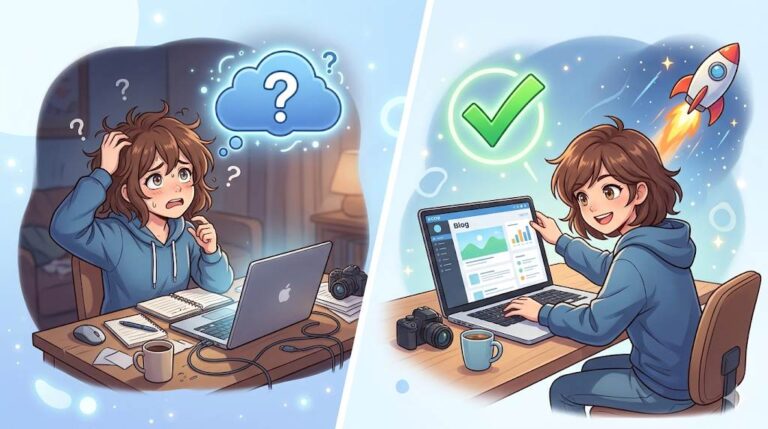
You designed a logo. You uploaded it to Blogger. Then you checked your site – and it looked terrible. Cropped. Blurry. Stretched. Or maybe it did not show up at all.
This happens to almost every beginner, brother. Blogger does not automatically resize logos the way you expect. And the default theme settings often destroy image quality.
But here is the good news. There is a specific logo in Blogger size that works perfectly on every theme. Use this size, and your logo will look crisp, clear, and professional on all devices – desktop, tablet, and mobile.
In this guide, I will show you the exact logo dimensions for Blogger, how to fix a blurry logo, and step‑by‑step instructions to upload it correctly. Let us fix this once and for all.
Before you upload your logo, make sure your blog’s design is optimized overall. My How to Customize Blogger Template guide covers safe editing practices. And if you need a new template that handles logos better, check Best Free Blogger Templates – themes like Contempo and Soho are logo‑friendly.
📌 Real story – Omar spent 3 hours trying to fix his logo
Omar created a beautiful logo for his tech blog. He uploaded it to Blogger. On his desktop, it looked fine. But on mobile, the logo was cut in half. He tried resizing, cropping, and even switching themes. Nothing worked. Then he learned the exact size rule. He resized his logo to 400px width (with transparent background), re‑uploaded it, and checked “Shrink to fit”. Within 2 minutes, his logo was perfect on every screen. He wasted hours just because nobody told him the size. Do not make his mistake.
⚠️ The #1 mistake that ruins your Blogger logo: Uploading a huge image (like 2000px wide) and expecting Blogger to resize it perfectly. Blogger will squash, crop, or blur it. Always resize your logo BEFORE uploading.
✅ What Is the Perfect Logo Size for Blogger?
After testing dozens of themes and device combinations, the safe and reliable logo size is:
- Width: 400 pixels (px)
- Height: between 80px and 120px
- Format: PNG with transparent background
- File size: under 100KB (for fast loading)
Why 400px width? It is wide enough to look crisp on desktops, but small enough to load quickly on mobile. Most Blogger themes have a header area between 800px and 1200px wide. A 400px logo takes up about one‑third of that space – perfect for balance.
Why PNG with transparent background? JPG images have a white box around them. PNG allows your blog background to show through. It looks much more professional.
🛠️ How to Resize Your Logo (Free Tools)
If your logo is too large, you do not need Photoshop. Use these free tools:
- Canva – Create a custom design with 400x100px dimensions. Export as PNG.
- TinyPNG / TinyJPG – Compress your image without losing quality.
- BulkResizePhotos – Free online resizer. Upload, set width to 400px, download.
Do not skip compression. A 2MB logo will slow down your blog, which hurts SEO and annoys visitors.
📝 Step‑by‑Step: How to Add a Logo in Blogger (With Correct Size)
Step 1: Prepare Your Logo
Resize your logo to 400px wide, height between 80‑120px. Save as PNG with transparent background. Keep file size under 100KB.
Step 2: Go to Blogger Layout
- Log into Blogger → Select your blog
- Click “Layout” in the left menu
Step 3: Edit the Header Section
- Find the “Header” section
- Click “Edit” (pencil icon)
Step 4: Upload Your Logo
- Click “Upload” and select your resized logo
- Choose placement: “Instead of title and description”
- Check the box “Shrink to fit” – this prevents cropping
Step 5: Save and Preview
- Click “Save”
- View your blog on desktop and mobile
- If anything looks off, re-check the size (400px width is the magic number)
🔧 What If Your Logo Still Looks Blurry or Cropped?
Sometimes the “Shrink to fit” option does not work perfectly on old themes. Here are two fixes:
Fix 1: Use Custom CSS (Advanced but Powerful)
Go to Theme → Edit HTML. Search for ]]></b:skin> and paste this code just before it:
.header .widget img {
max-width: 100%;
height: auto;
width: auto;
}
This forces the logo to scale properly on all screen sizes. (If you need help editing your template, the customization guide linked above covers safe editing.)
Fix 2: Switch to a Mobile‑Friendly Theme
Some old Blogger themes do not handle logos well. Go to Theme → click on “Customize” → choose a modern, responsive theme like “Contempo” or “Soho”. These themes are designed for logos.
❌ Common Logo Mistakes That Kill Your Branding (Avoid These)
- ❌ Uploading a huge image (2000px+). It will be slow and often distorted.
- ❌ Using JPG instead of PNG. White background box looks unprofessional.
- ❌ Forgetting the “Shrink to fit” checkbox. Your logo will be cropped.
- ❌ Ignoring mobile view. Always test on your phone.
- ❌ Using text as a logo. It does not scale well. Use an actual image.
💡 Pro Tips for a Professional Blogger Logo
- ✅ Keep it simple. Too many colors or details become unreadable when scaled down.
- ✅ Use your blog name clearly. Do not use abstract icons only – people need to remember your name.
- ✅ Match your niche colors. A finance blog should not have neon pink logos.
- ✅ Test on dark and light backgrounds. Make sure your logo is visible on both.
Once your logo is perfect, focus on creating content that matches your professional image. My Visual Content for Bloggers guide shows you how to design Pinterest pins, blog graphics, and social media images – all from your phone or computer.
💡 The Brutal Truth (Read This Twice)
Most beginners ignore their logo because “content is more important.” While content is king, your logo is the first impression. A blurry, cropped, or missing logo tells visitors: “This blog is not serious.” A clean, sharp, properly sized logo tells them: “This blog is professional. I can trust this person.”
Omar wasted 3 hours because nobody told him the size. You don’t have to. The fix takes 5 minutes. Resize to 400px. Upload. Check “Shrink to fit”. Done.
⚠️ Remember: A fast‑loading, properly sized logo improves user experience and site speed – both are ranking factors. Don’t skip compression.
📋 Your 5‑Minute Logo Fix Checklist
- ☐ Resize logo to 400px width (height 80‑120px). Save as PNG.
- ☐ Compress file size under 100KB (use TinyPNG).
- ☐ Go to Blogger → Layout → Edit Header.
- ☐ Upload logo. Choose “Instead of title and description”.
- ☐ Check “Shrink to fit”.
- ☐ Save and preview on desktop + mobile.
- ☐ If still blurry, add the custom CSS fix above.
🙋 Frequently Asked Questions
What is the best logo width for Blogger?
400 pixels. It works perfectly on all themes and devices.
Why is my Blogger logo blurry?
You uploaded a low‑resolution image or a huge image that Blogger tried to shrink badly. Resize to 400px first.
Can I use a logo with a transparent background?
Yes. Always use PNG format for transparent backgrounds.
Why is my logo cut off on mobile?
The “Shrink to fit” checkbox was not enabled, or your theme is outdated. Enable the checkbox or update your theme.
Do I need a logo to start a blog?
No, but it builds trust and professionalism. Even a simple text logo is better than none.
🎤 Final Thoughts: A Perfect Logo Builds Trust
Your logo in Blogger is often the first thing visitors see. A blurry, cropped, or missing logo tells them: “This blog is not serious.”
But a clean, sharp, properly sized logo tells them: “This blog is professional. I can trust this person.”
You now have the exact size (400px width). You have the step‑by‑step guide. You have the CSS fix if needed. There is no excuse for a broken logo anymore.
Resize your logo today. Upload it correctly. Watch your blog look instantly more credible.
You have got this, brother. 🚀
👉 Ready to fix your Blogger logo in 5 minutes? Go to your Blogger dashboard now. Resize your logo to 400px, upload, check “Shrink to fit”. Done.