SEO Settings for Blogger: Stop Wasting Time – Set These 5 Now
📘 TL;DR – What you’ll learn: You’ve been writing content that nobody can find. These 5 SEO settings take 10 minutes and will finally get your blog on Google. Stop wasting time. Start getting found. This guide walks you through enabling search descriptions, setting up robots.txt, customizing header tags, writing post descriptions, and using clean permalinks – plus how to submit your blog to Google Search Console.
🔥 The Invisible Blog Problem
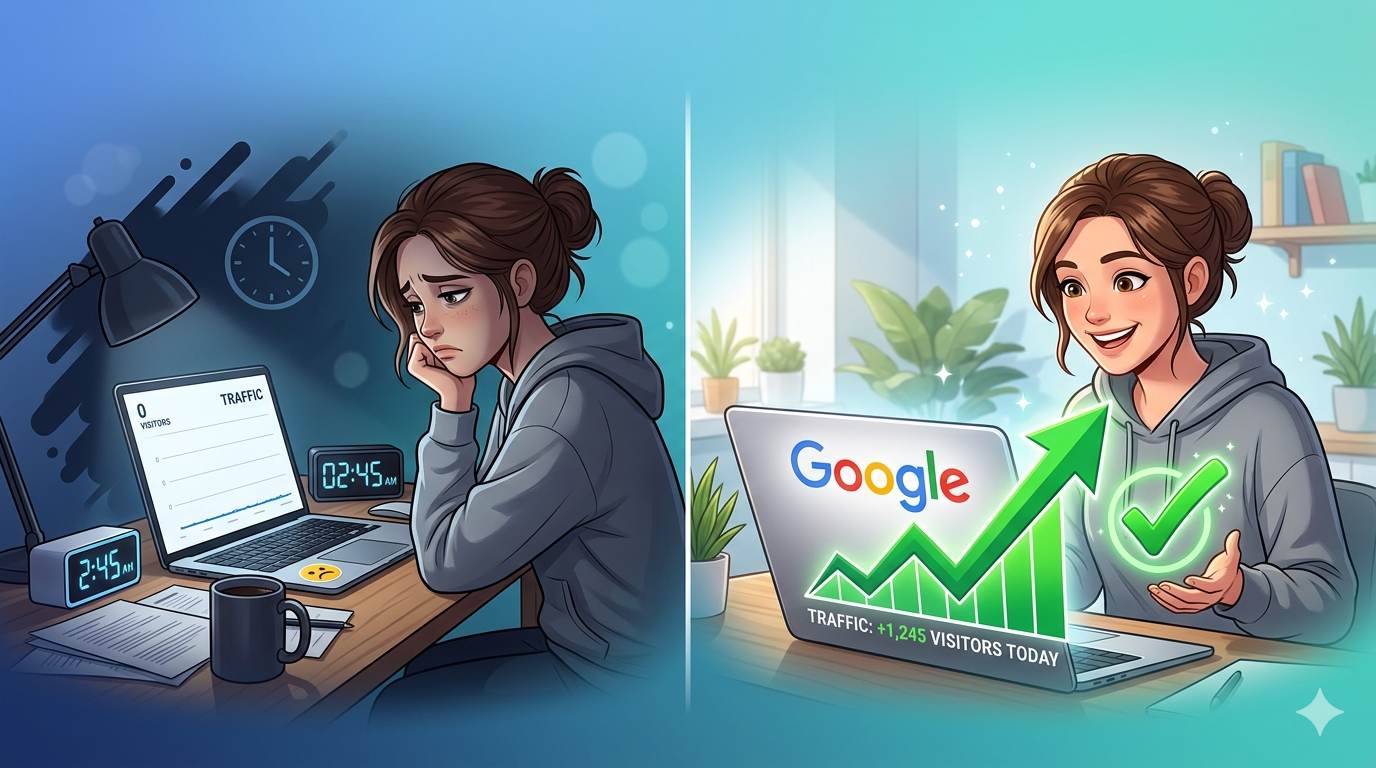
Let me ask you something, friend. How many blog posts have you published? 10? 20? 50? Now, how many of them show up on Google? If the answer is “none” or “I don’t know,” you’re wasting time. You’re writing content that nobody can find. The good news? Fixing this takes 10 minutes. No tech skills. No expensive tools. Just 5 settings you need to turn on right now.
Before we dive into the settings, understand the foundation of SEO success. My Blogger SEO Checklist guide covers everything from keywords to internal linking. And to track how your posts perform after you fix these settings, set up Google Search Console for Blogger – it’s free and shows you exactly how Google sees your site.
📌 True story – Omar wasted 6 months
Omar wrote amazing content for half a year. Zero traffic from Google. He thought his writing was bad. Then he discovered that one simple setting was blocking his entire blog. After fixing the 5 settings below, his posts started appearing on Google within 2 weeks. He didn’t need better content. He needed better settings.
❌ The #1 Time-Waster (Check This First)
Go to Blogger Dashboard → Settings → Basic. Look for “Let search engines find your blog?” If it’s set to “No,” you have been blocking Google from indexing your entire site. This is the most common beginner mistake. Set it to “Yes” immediately. This one click changes everything.
✅ The 5 SEO Settings You Need to Set Now (Stop Wasting Time)
These are the only settings that matter for beginners. Don’t get distracted by advanced options. Start here.
1. Enable Search Description (Your Free Ad on Google)
Where to find it: Settings → Meta Tags → “Enable search description”
Why it matters: Without this, Google picks random text from your blog. With it, you control what people see in search results.
What to write: One sentence (150 characters max). Tell readers what your blog is about and why they should click. Include your main keyword. Use Grammarly to polish your description.
2. Turn on Custom Robots.txt
Where to find it: Settings → Crawlers and indexing → “Enable custom robots.txt”
Why it matters: Tells Google what to crawl and what to ignore. Without it, Google might waste time on unimportant pages.
What to do: Turn it on and keep the default code. Don’t change anything – the default is perfect for beginners.
3. Turn on Custom Robots Header Tags (Prevent Duplicate Content)
Where to find it: Settings → Crawlers and indexing → “Enable custom robots header tags”
Why it matters: Prevents archive and search pages from competing with your main posts.
How to set it (copy exactly):
– Homepage: “all, noodp”
– Archive and search pages: “noindex”
– Posts and pages: “all”
4. Write a Search Description for Every Post
Where to find it: While editing a post → on the right panel → “Search Description”
Why it matters: This is what shows up on Google when someone finds your post. If you leave it blank, Google picks random text – and it’s rarely good.
What to write: 150-160 characters. Include your main keyword. Make it a clear, compelling reason to click.
5. Use Custom Permalinks (Short, Clean URLs)
Where to find it: While editing a post → on the right panel → “Permalink” → “Custom Permalink”
Why it matters: Default URLs have random numbers and letters. Clean URLs with keywords help Google understand your post. For a complete guide, read URL Structure for SEO – it covers the 3 stupid mistakes that kill your rankings.
What to use: Your main keyword (e.g., seo-settings-for-blogger). No dates. No extra words.
Use Canva to create visuals that support your SEO‑optimized posts and make them more engaging.
⚠️ One More Thing – Custom Domain vs. Blogspot
If you’re still using yourblog.blogspot.com, switch to a custom domain (like yourblog.com). Professional domains rank better and look more trustworthy. Domains cost ~$10/year – worth every penny.
🔧 How to Know It’s Working (Don’t Skip This)
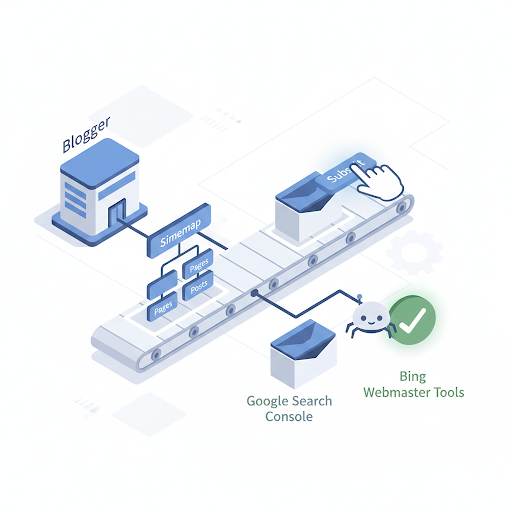
After you set these 5 settings, you need to tell Google about your blog. It’s free and takes 2 minutes.
- Go to Google Search Console (free tool).
- Add your blog’s URL.
- Verify ownership (Google gives you simple instructions).
- Submit your sitemap – it’s usually
yourblog.com/sitemap.xml.
Within a few days, Google will start crawling your blog. You’ll see impressions (how many times your blog appeared in search) in Search Console. That’s how you know it’s working. For a complete guide to setting up Search Console, read Google Search Console for Blogger – it walks you through verification, sitemap submission, and monitoring your site’s performance.
💡 The Brutal Truth (Read This Twice)
You’re wasting time writing content that nobody can find. Not because your content is bad. Because your SEO settings are wrong. Every hour you spend writing without fixing these settings is an hour you’ll never get back.
The good news? These 5 settings take 10 minutes. Once they’re set, every post you publish has a chance to be discovered. Stop hoping for traffic. Stop guessing. Set these settings now. Your future readers are searching for you – but they can’t find you yet.
⚠️ Remember: One simple setting can block your entire blog from Google. Check the “Let search engines find your blog?” setting right now. It takes 5 seconds and could save you months of wasted effort.
📅 Your 7‑Day SEO Settings Plan (Stop Wasting Time Starting Today)
- Day 1 (Today): Set all 5 settings above (takes 10 minutes).
- Day 1 (Today): Submit your blog to Google Search Console.
- Day 2: Pick an old post. Add a search description and a custom permalink.
- Day 3: Do the same for 3 more old posts.
- Day 4: Write a new post with all 5 settings applied.
- Day 5: Publish it. Share it on social media.
- Day 6: Wait. Google needs time to crawl.
- Day 7: Check Google Search Console – you’ll see impressions (and hopefully clicks).
After 7 days, your blog will be ready for Google. And you’ll stop wasting time on content nobody sees.
🙋 Frequently Asked Questions
What if I don’t see results immediately?
SEO takes time. Google needs to crawl and index your pages. Wait 2‑4 weeks. If you still don’t see impressions, check Search Console for errors.
Do I need to set these for every new post?
You only need to set the global settings once. For search descriptions and custom permalinks, do them for each new post.
What if I accidentally break something?
You can always revert settings. Blogger allows you to undo changes. Follow the instructions above – they’re safe for beginners.
Can I use the same search description for all posts?
No. Each post should have a unique search description that matches its content. Google ignores duplicate descriptions.
How do I know if my blog is indexed?
Search “site:yourblog.com” on Google. If you see your posts, you’re indexed. If not, check your settings and Search Console.
🎤 Final Thoughts: Stop Wasting Time – Start Getting Found
You’ve been wasting time. Every post you’ve published without these settings has been invisible to Google. That stops today. Stop reading. Open your Blogger dashboard. Set these 5 settings now. It takes 10 minutes. Your future readers are waiting. Don’t make them wait another day. 👻
👉 Ready to stop wasting time and finally get on Google? Open your Blogger dashboard now. Set these 5 settings in 10 minutes. Then submit your sitemap. Start getting found.