How to Install Blogger Template in 5 Easy Steps
📘 TL;DR – What you’ll learn: Installing a custom Blogger template is the fastest way to make your blog look professional, improve mobile experience, and boost your SEO. This guide walks you through downloading a template, backing up your current theme, uploading the new .xml file, and customizing your design – all in 5 easy steps. No coding required. Just a few clicks.
🔥 The “Plain Blogger” Problem
Let me ask you something, friend. You’ve just created your blog on Blogger. Awesome! But now you’re wondering… how do I make it look better? That’s where installing a template comes in — and don’t worry, it’s way easier than it sounds. In this guide, I’ll walk you through how to install a Blogger template step by step, using simple language and no tech talk. Whether you’re brand new to blogging or just want to refresh your blog’s look, you’re in the right place. Let’s get started.
Before you install a new template, understand the basics of Blogger design. My How to Change Blogger Template guide covers the fundamentals. And once you’ve installed your new design, you’ll want to customize it further – read How to Customize Blogger Template for safe editing tips.
📌 Quick tip: Installing a custom template is the fastest way to make your blog look professional, improve mobile experience, and even boost your SEO. No coding required. Just a few clicks.
✅ What’s a Blogger Template?
Think of a template like the skin of your blog — it controls how everything looks: layout, colors, fonts, and where things go (like your sidebar, menu, posts). Blogger gives you some built‑in templates, but most of them are… well, basic. If you want something cleaner, faster, more modern, or more “you” — you’ll want to install a custom template.
📊 Why Install a Custom Blogger Template?
- Your blog looks more professional
- Better user experience (especially on phones)
- You can add cool features like email sign‑up forms or menus
- Many custom templates are built for SEO (so you rank better on Google)
- It helps your blog stand out and look trustworthy
And honestly? When your blog looks great, you’ll feel more confident sharing it.
🛠️ What You’ll Need
- ✅ A Blogger blog (already set up)
- ✅ A template file (you’ll download this)
- ✅ A computer (easier than using your phone)
📋 Step‑by‑Step: How to Install a Blogger Template (Simple Guide)
Step 1: Download a Template
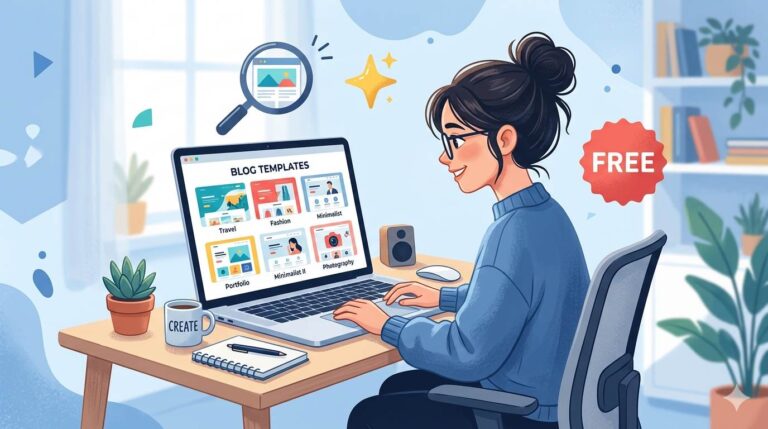
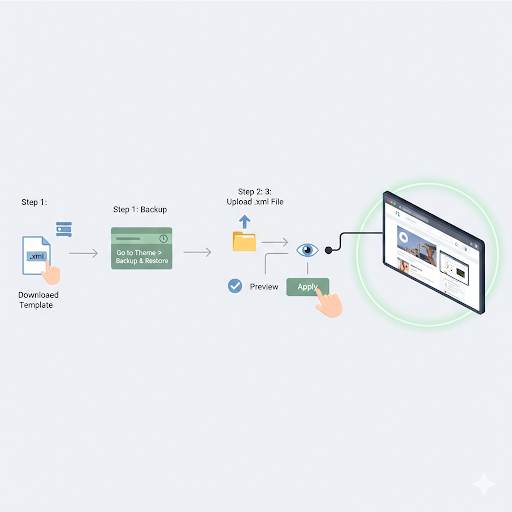
Search Google for things like: “Free Blogger templates 2026”, “SEO Blogger theme”, or “Modern Blogger template”. Pick one you like. Make sure it’s: mobile‑friendly, fast loading, and easy to use. Once you download it, you’ll get a .zip file. Right‑click and extract/unzip it. Look for the file that ends in .xml — that’s the one you need. For recommendations, check out Best Free Blogger Templates – it lists clean, professional designs that won’t slow down your site.
Step 2: Log in to Blogger
Go to www.blogger.com and sign in. Choose your blog → Click Theme on the left menu.
Step 3: Back Up Your Current Theme (Important)
Before changing anything, always back up your current theme — just in case you want to go back. Here’s how:
- In the Theme section, click the down arrow (next to Customize)
- Choose Backup
- Click Download
That’s it. Now you’re safe.
Step 4: Upload the New Template
Still in the Theme section:
- Click the arrow again and choose Restore
- Click Upload and select your .xml file
- Wait a few seconds… and done! Your new design is now live 🎉
🎨 What to Do After Installing the Template
- ✅ Go to Layout and move things around if needed
- ✅ Use the Theme Designer to tweak colors, fonts, and logos. Use Canva to create custom graphics that match your new design.
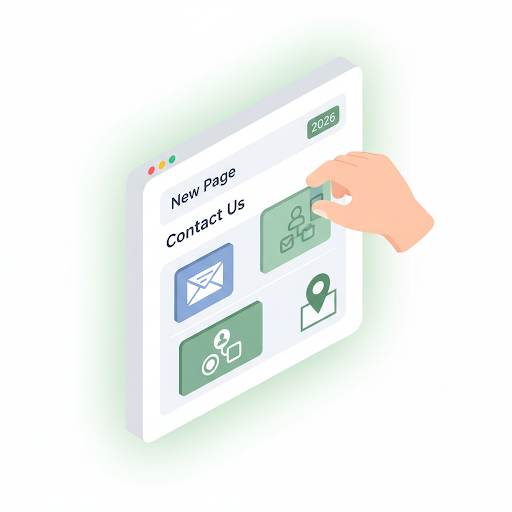
- ✅ Add important pages (About, Contact, Privacy) – for a complete guide, read How to Add Pages in Blogger.
- ✅ Check your blog on mobile to see how it looks
- ✅ Fix anything that looks weird or out of place
❌ Avoid These Beginner Mistakes
- ❌ Forgetting to back up their old theme
- ❌ Choosing a slow or messy template
- ❌ Trying to do this from their phone (desktop is easier)
- ❌ Ignoring mobile design — most visitors are on phones
- ❌ Leaving the blog empty — customize and personalize it!
💡 The Brutal Truth (Read This Twice)
Most beginners stick with the default Blogger template because they’re afraid of breaking something. They think installing a custom template is complicated. But here’s the truth: it takes 5 minutes. Back up your current theme. Upload the new .xml file. That’s it.
How to install a Blogger template is one of the easiest upgrades you can make to your blog. A clean, modern design instantly makes your blog look more professional, trustworthy, and worth reading. Don’t let fear of the unknown keep your blog looking like it’s from 2010.
⚠️ Remember: Always back up your current theme before uploading a new one. If something goes wrong, you can restore your old design in seconds. No risk, all reward.
📅 Your 7‑Day Blogger Template Action Plan
- Day 1: Browse and download 3 free templates you like. Check out BTemplates for hundreds of free options.
- Day 2: Back up your current theme (30 seconds).
- Day 3: Upload and install your first choice – see how it looks.
- Day 4: Test on mobile and desktop. Tweak colors/fonts in Theme Designer.
- Day 5: Add your logo and update your sidebar widgets.
- Day 6: Create essential pages (About, Contact, Privacy).
- Day 7: Share your new, professional‑looking blog proudly.
After 7 days, your blog will look completely transformed. $0 spent.
🙋 Frequently Asked Questions
Do I need to know coding to install a Blogger template?
No. The process is all clicks – download, upload, save. No coding required.
What if I don’t like the new template?
That’s why you backed up your old theme! Just go to Theme → Restore → Upload your backup file. You’ll be back to your old design in seconds.
Can I install a template on mobile?
It’s possible, but much easier on a computer. Use a laptop or desktop for the best experience.
How do I know if a template is mobile‑friendly?
Most modern templates are. Check the template description for “responsive” or “mobile‑friendly.” After installing, always test on your phone.
Will installing a new template delete my posts?
No. Your posts, pages, and comments stay exactly the same. Only the design changes.
🎤 Final Thoughts: Transform Your Blog Today
Installing a Blogger template isn’t scary. You don’t need to be a developer or techy person. With a few simple clicks, you can turn your plain blog into something beautiful and professional — and it’ll feel so good to share your blog with the world.
You started this. Keep going. You’ve got this, friend. 👻
👉 Ready to install a beautiful template on your Blogger blog? Find free Blogger templates on BTemplates. Download your favorite .xml file. Follow the 4 steps above. Make your blog shine.